
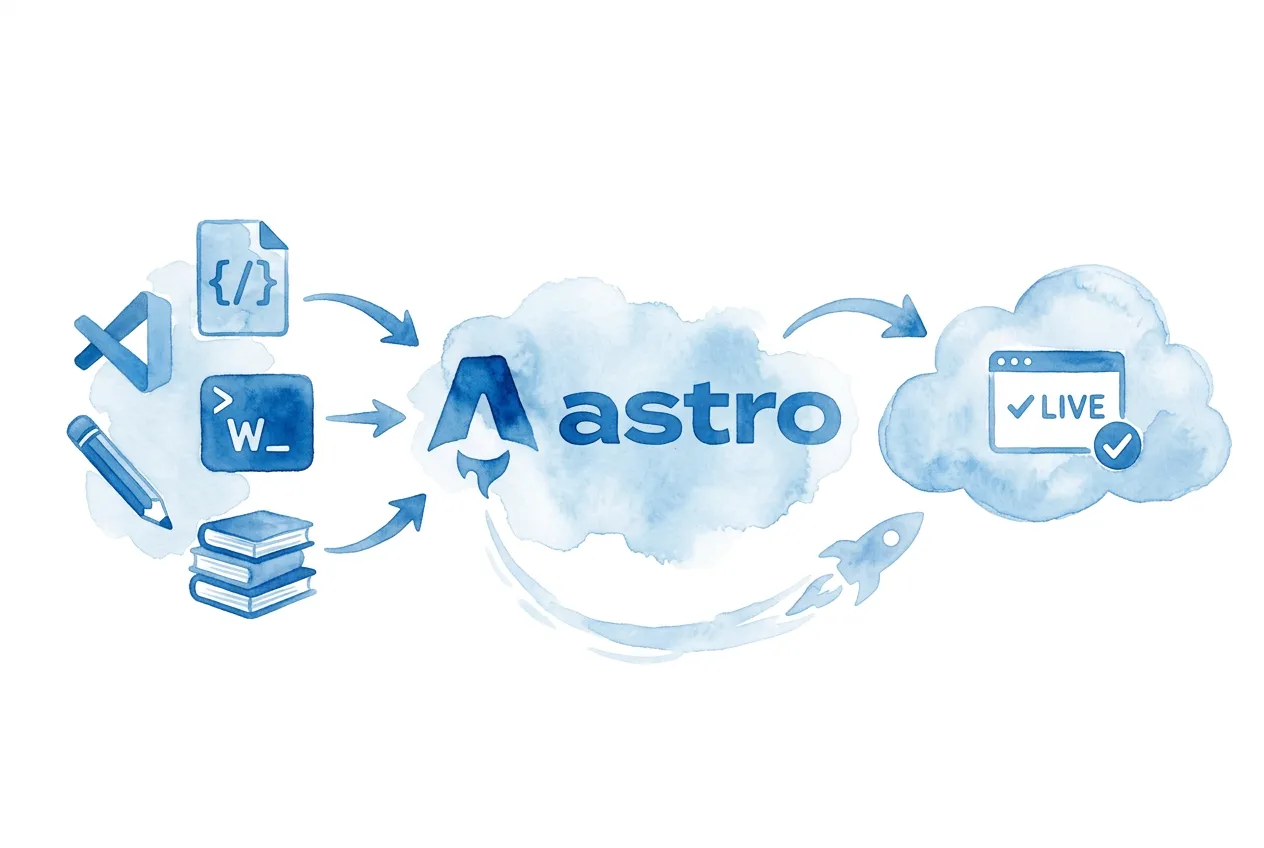
I’m paying a whopping $12 bucks a year for each of my websites. Per year, not per month. That covers the domain name. Everything else is free.
Meanwhile, I keep finding authors who are paying $10, $20, sometimes $30 bucks a month for a WordPress site that loads slowly and is always in need of an update. Website maintenance sucks.
That’s a lot to be spending on a website every year for a website that’s slower than mine, less secure than mine, and harder to maintain than mine.
Frugality for the win!
The secret isn’t some special hosting deal or a coupon code I found on Reddit. It’s a type of website that most authors have never heard of. It loads almost instantly, costs nothing to host, is virtually unhackable, handles unlimited traffic, and (here’s the part that gets me excited) is the easiest kind of site for AI to build and maintain.
It’s called a static site.
Just like this site, built using Astro.
This guide is going to walk you through building one from scratch.
You don’t need to be a code monkey to make this work. Your happy-go-lucky AI friend will be doing all the heavy lifting for you. It’s like having a developer who works for free, never sleeps, and doesn’t judge you for questionable design decisions. ;)
Why a Static Site?
Okay, quick detour to Websites 101. I promise this is relevant.
A static site is a website made of plain HTML (HyperText Markup Language), CSS (Cascading Style Sheet), and JS (JavaScript) files. That’s the stuff your browser already knows how to display. There’s no database. No server running code every time someone loads a page. It’s just… files.
WordPress, Patreon, Substack (and practically every site you know) by contrast, are dynamic sites. Every single time someone visits a page, the server wakes up, queries a database, loads template files, and smashes everything together into HTML. This is what’s sent to the browser. It happens every- single- time. As you can imagine, it takes computing power, which takes time, which takes money.
A static site does all that work once, ahead of time.
You trigger a build (takes seconds), and the result is a set of ready-to-go files. Those files get distributed across a global network of servers called a CDN (Content Delivery Network), so your site loads super-duper fast no matter where in the world your readers are.
So why should you care?
Again, it’s stupidly fast. Your pages load in under a second. Not because you’re paying for some premium server, but because there’s nothing to process. Your site is just files sitting at a data center near your reader, pre-built and ready to go.
It’s free to host. This isn’t a limited trial or some bait-and-switch where they jack up the price in six months. Static files are so cheap to serve that companies offer free hosting as a loss leader. I’ve been doing this for years and haven’t paid a cent.
It’s secure. Sites get hacked because they have databases, admin panels, and plugins with security holes. A static site is just HTML. There’s nothing to hack. No database to breach. No admin password to steal. No plugins full of vulnerabilities you didn’t know about until you discover strange links in your articles to questionable websites.
AI can build and update it for you. Besides free, this is the biggest reason to build a static site. AI coding tools can create and update pages, redesign your layout, and add new features, just by asking. Work smarter, right?
You get a full offline version. You can preview your entire website on your own computer before anything goes live. Tweak it. Hate the colors? Change them. Rearrange the layout. Only publish when you’re happy with what you see.
Everything is version controlled. Every change you make is tracked in a thing we call a repository (or repo, if you’re cool). This, plus diff reports (showing you side-by-side versions of the file’s contents), should eradicate any AI fears you have. Every change is highlighted and reversable with a single click.
The Trade-offs
Not everything is ice cream sundaes and happy dances.
There are tradeoffs. So, let’s shine a spotlight on them.
There’s a learning curve; drats! You’ll be installing a few tools and learning new concepts. It’s not hard, but it’s unfamiliar, and unfamiliar things feel harder than they are. This guide walks you through every step, and if you get stuck, your AI will happily help you out (in exchange for head pats and “who’s a good bot!?“s).
You don’t have a traditional server. That means you can’t host things like comment systems, user accounts, or shopping carts directly on your site.
But do you really need to?
Comments can be handled by external services like Disqus (free, ad supported). And if you sell books, you’re almost certainly linking out to Amazon, your publisher, or a dedicated storefront anyway. Your author website is a marketing hub where readers go to sign up for your newsletter and catch up on your latest blog posts.
A Note on Doing Hard Things
If you’ve never opened a terminal or typed a command before, parts of this guide will feel overwhelming. That’s totally okay. That feeling doesn’t mean you can’t do this.
Look, the only real difference between me (a programmer) and you (reading this guide) is that I’ve had years of practice being over-my-head confused for sustained periods of time. That’s all devs are: perpetually challenged!
Welcome to the group. :)
When you see something confusing or different, don’t panic. You don’t need to understand every detail right now. You just need to follow the steps. Routine leads to familiarity, familiarity leads to understanding and confidence.
Work through this at your own pace. It’s perfectly fine to do it in chunks. Get through the setup on day one, build your site on day two, deploy it on day three. Heck, take a week. There’s no rush. Your future website will still be free whenever you finish.
And when you get stuck (as I often do, myself), have a lovely talk with your AI. Copy the error message, paste it into your chat, and ask what went wrong. AI can debug your specific situation faster than any developer could over email.
Ask questions and enjoy this journey, as it will definitely empower you to do things you’ve probably never thought you could.
The Tools We’ll Use
All of these are free or have free versions!
- A code editor: Cursor, Windsurf, Claude Code, etc. (you’ll pick one)
- Warp: a modern terminal app where you’ll type commands
- npm: installs the software packages your site needs
- Astro: the framework that builds your static site (more on this below)
So what exactly is Astro? And what's a static site generator?
You know how we just talked about static sites being plain HTML, CSS, and JS files? Well, nobody wants to write all that by hand. That’s where a static site generator (SSG) comes in.
An SSG is a tool that takes your content, your templates, and your styles, and smooshes them all together into those ready-to-go files your browser loves. You write your pages in a friendly format, hit build, and out pops a complete website. No hand-coding HTML tags until your eyes glaze over.
There are a bunch of SSGs out there. Here are a few popular ones:
- Astro is our pick for this guide. It’s built for content sites (like, say, an author website), ships zero JavaScript by default (which means fast), and plays nicely with AI coding tools. It’s also the newest of the bunch and learned from the mistakes of those before it.
- Hugo is written in Go and is blazing fast at building sites. It’s been around for a while and has a loyal following, though its templating language can be… an acquired taste.
- Eleventy (11ty) is flexible and lightweight. Devs love it. It’s a bit more “bring your own everything,” which is great for tinkerers but can feel like assembling IKEA furniture without the pictures.
- Jekyll is the OG. GitHub Pages was basically built around it. It’s still kicking, but it’s showing its age a bit, like that flip phone you keep in a drawer “just in case.”
We’re going with Astro because it hits the sweet spot for authors: easy for AI to work with, great for content-heavy sites, and it doesn’t require you to learn React or any other JavaScript framework. Just write your content, let Astro do the nerdy stuff.
- Tailwind CSS: a style library that AIs are very good at using
- GitHub: version control that tracks every change you make
- Cloudflare Pages: free hosting with free SSL and a global CDN
The only cost is an optional domain name (like yourname.com), which runs about $12/year through Cloudflare. You can skip this and use the free yoursite.pages.dev URL that Cloudflare gives you, but… most authors are going to want their own domain. It just looks more professional and isn’t that much, unless you have dozens like I do…
A Quick Note About the Terminal
We’re going to use the terminal a lot, and I know that word sounds intimidating. Like it should come with a flashing red warning light and a security clearance.
It’s not that bad.
The terminal is just a way to talk to your computer by typing instead of clicking. Many of the tools we will be using require typed commands, such as installing packages and running scripts.
Here’s a complete list of the commands we’ll be using. You don’t need to memorize them, but it wouldn’t hurt to skim them.
| Command | What It Does |
|---|---|
cd foldername | Go into a folder |
cd .. | Go up one folder |
ls | List what’s in the current folder |
pwd | Show where you are right now |
mkdir foldername | Create a new folder |
clear | Clean up the screen (just cosmetic) |
Ctrl + C | Stop a running command (like your dev server) |
npm run dev | Start your local dev server |
git add . | Stage all your changes for a commit |
git commit -m "message" | Save a snapshot of your staged changes |
git push | Upload your commits to GitHub |
git status | See which files have changed since last commit |
Don’t forget what I said about being overwhelmed. Just push that feeling aside and continue forward. Onward!
Step 1: Install Your Tools
We need to install several things before we can build your site. I know… “installing stuff” is nobody’s favorite activity. It’s the vegetables before dessert. But each one takes about two minutes, and you only do this once.
A note for Windows users: This guide works on Windows, Mac, and Linux. Whenever a step is different on Windows, I’ll call it out. The main difference is that where Mac users type commands with
~/(which means “my home folder”), Windows users should use%USERPROFILE%\instead, or just use the full path likeC:\Users\YourName\. Everything else works the same.
1A: Install Warp (Your Terminal)
Your computer already has a terminal built in, but Warp is better. It’s modern, it looks nice, and it has AI built right in that can help you if you get stuck. Oh, and it’s free.
- Go to warp.dev
- Download the version for your operating system
- Install it like any other app
- Open it up
You’ll see a window with a blinking cursor. That’s your terminal. See? Not so scary.
1B: Install Homebrew (Mac Only)
Homebrew is a tool that installs software on your Mac through the terminal. We’ll need it in a later step to install the GitHub CLI (Command Line Interface). Windows and Linux users can skip ahead to Step 1C.
Most Macs don’t have Homebrew pre-installed, so let’s set it up now. Paste this into Warp:
/bin/bash -c "$(curl -fsSL https://raw.githubusercontent.com/Homebrew/install/HEAD/install.sh)"This will take a minute or two. It might ask for your computer’s password (the one you use to log in). That’s normal. Type it in and press Enter. Fair warning: you won’t see the characters appear as you type. That’s not a bug. It’s a security thing.
When it’s done, read the output carefully. Homebrew sometimes prints instructions at the end telling you to run a couple of extra commands to add it to your path (your path is just the list of places your computer looks for programs). If you see something like “Run these commands to add Homebrew to your PATH,” copy and paste those commands into Warp and run them.
Verify it worked:
brew --versionYou should see a version number. If you see “command not found,” close Warp completely and reopen it, then try again.
1C: Install Node.js
Node.js is the engine that powers Astro and most modern web tools. You won’t interact with it directly. It just needs to be there, quietly doing its thing in the background.
- Go to nodejs.org
- Download the LTS version (the one that says “Recommended for Most Users”)
- Run the installer and accept all the defaults. Just keep clicking Next/Continue. Click, click, click, done.
- Open Warp and type this to make sure it worked:
node --versionYou should see a version number like v22.14.0 (the exact number doesn’t matter, as long as something shows up). If you see “command not found,” close and re-open Warp.
1D: Choose Your AI Code Editor
Alrighty, it’s time to pick the tool that will actually build your website for you. There are a bunch of options here, and new ones keep popping up. Pick what fits your situation and additional information will appear.
Option A: Cursor Recommended for most authors. Free, no subscription required.
If you want a free and simple path, go with Cursor. It’s a code editor with AI built in. This is the editor I use, even if I also use Claude Code (Option B) via the terminal.
Cursor’s free plan gives you a limited number of AI requests per month. For a simple author website, that should be plenty. Just be deliberate with your prompts.
“Build me a complete homepage with a book grid and newsletter signup” is one request that does a lot of work. “Make the header blue. No, darker. No, a little lighter. Add a gradient. Remove the gradient.” is five requests that could’ve been one. You get the idea.
- Go to cursor.com
- Download and install it
- Open it up and sign in with a free account
That’s it. You may now move on to Step 2.
Option B: Claude Code Best if you already have Claude Pro ($20/mo). Runs in the terminal or the Claude app.
Have a sub to Claude already? Then this is what you want. Claude is the best at coding websites (in my most humble opinion), and it doesn’t cost you anything extra to use it.
You can use Claude Code in two ways: directly in your terminal (Warp), or through the Claude app’s “Claude Code” tab if you prefer a more visual interface.
Either way, you’ll need a code editor to browse your project files. I recommend VS Code, the most popular code editor on the planet, open source (AKA free), and built by Microsoft.
- Install VS Code: code.visualstudio.com
- Install Claude Code in Warp (for the terminal version):
npm install -g @anthropic-ai/claude-code- Verify it installed (you may need to restart Warp):
claude --versionThe first time you run Claude Code, it’ll ask you to log in. Follow the prompts. It’ll open a browser window where you can sign in with your Claude account. Woot! You may now move on to Step 2.
Option C: Other Free Options Windsurf, Google Antigravity, Gemini CLI, Codex CLI, and more.
The above options aren’t good enough for you, eh? No worries, because there are no end of options in the AI coding tool space. Here are a few more options to consider.
- Windsurf: Another editor with built-in AI, similar to Cursor. Has a free plan.
- Google Antigravity: Google’s AI code editor. Free while in early access.
- Gemini CLI: Google’s terminal-based AI (like Claude Code, but for Gemini). Free if you have a Google Gemini subscription.
- Codex CLI: OpenAI’s terminal-based AI. Free if you have a ChatGPT Plus subscription.
Capabilities are always changing. As of this writing, Gemini is the best designer, Codex is the best debugger, and Claude is the best all-around AI (my main AI). Windsurf and Cursor allow you to use hundreds of different models, so don’t feel like you’re limited, haha.
Any of these will work for this guide. The prompts are the same regardless of which tool you use. You’re just typing plain English either way.
For the rest of this guide, I’ll say “your AI” to mean your coding AI assistant, running in your editor or terminal, not a chatbot. This is important because the chatbot doesn’t have access to all of your files.
Step 2: Set Up Your GitHub Account
GitHub is your free repository host. Think of it as a special kind of cloud storage that tracks–primarily–code changes.
Break something? You can go back to a previous version. Want to see what your site looked like two months ago? It’s all there. It’s also how Cloudflare (your free host) knows to rebuild your site when you make updates.
- Go to github.com and create a free account
- Pick a username (this will be visible, so maybe don’t go with
xX_DarkWolf_Xxunless that’s your brand) - Verify your email
Now we need to set up Git on your computer so it can talk to GitHub. In Warp, type these two commands (replace the placeholder info with your actual info):
git config --global user.name "Your Name"
git config --global user.email "[email protected]"
Use the same email you used for GitHub.
Set Up GitHub Authentication
GitHub needs to know it’s really you when you push changes. Otherwise anyone could publish to your site, which… would be the opposite of good. The easiest way to set this up is with the GitHub CLI (Command Line Interface; it just means a program that runs in the terminal).
On Mac (using the Homebrew you installed in Step 1B):
brew install ghOn Windows, download and run the installer from cli.github.com.
On Linux:
sudo apt install ghNow log in:
gh auth loginIt’ll ask you a few questions:
- Where do you use GitHub? → GitHub.com
- Preferred protocol? → HTTPS
- Authenticate Git? → Yes
- How would you like to authenticate? → Login with a web browser
It’ll give you a code and open your browser. Paste the code, authorize it, and you’re done. Your computer can now push (AKA upload) code to GitHub.
That wasn’t so bad, right?
Step 3: Create Your Astro Project
Now for the fun part. We’re done installing things. (Cue the confetti.) Let’s actually build your website.
First, decide where you want your project to live on your computer. I like to keep mine in an Astro folder, but you can put it anywhere. In Warp:
Mac/Linux:
mkdir -p ~/Astro
cd ~/Astro
Windows:
mkdir %USERPROFILE%\Astro
cd %USERPROFILE%\Astro
Now create your Astro project:
npm create astro@latest my-author-siteReplace my-author-site with the name of your project. This will be the name of the folder that contains your project files.
Astro will ask you some questions. Here’s what to choose (the exact wording might vary slightly depending on the version):
- How would you like to start your new project? → Use minimal (empty) template
- Install dependencies? → Yes
- Do you plan to write TypeScript? → No (or “Relaxed” if that’s the closest option)
- Initialize a new git repository? → Yes
Once it’s done, move into your new project folder:
cd my-author-siteNow let’s add Tailwind CSS. Tailwind is a tool that makes styling your site way easier. Instead of writing custom CSS (the code that controls how things look), you add short class names directly to your HTML. AIs love it.
npx astro add tailwindSay yes to everything it asks.
See Your Site for the First Time
Start the development server:
npm run devThis converts the terminal into a dev server, that’s running locally. You’ll see a URL in Warp. Go ahead and cmd/ctrl+click it to open it in your browser.
And… voila! Your website is running, even if it doesn’t look like much yet. That’s only because we haven’t done anything yet. Cool stuff coming soon. :)
Every time you save a change to a file, the browser will update automatically. No refreshing needed.
To stop the development server, go back to Warp and press
Ctrl + C. You can always start it again withnpm run dev.
Step 4: Let Your AI Build Your Site
Give yourself a big pat on the back. You’ve done a lot already. And it’s about to pay off, because this is where things get fun.
Open Your AI in Your Project
First things first: keep your dev server running in Warp. You want to see changes as they happen. Then, open a second Warp tab (Cmd+T on Mac, Ctrl+T on Windows) and open your AI tool from your project folder.
Cursor (or another AI editor) You picked this in Step 1D.
Open your my-author-site folder in Cursor (File → Open Folder). You’ll see your project files on the left and an AI chat panel in the sidebar. That chat panel is where you’ll type your prompts.
Your AI lives inside the editor. It can see your files, create new ones, and edit existing ones. All you do is type what you want in the chat panel and let it work.
Claude Code (terminal) You picked this in Step 1D.
In a new Warp tab (cmd/ctrl+T on Mac/Windows), navigate to your project and launch Claude Code:
cd ~/Astro/my-author-site
claude
You’ll see a prompt where you can type instructions. Claude Code runs in the terminal, but it can read and edit all the files in your project.
Other AI tool Windsurf, Antigravity, Gemini CLI, etc.
Whatever tool you picked in Step 1D, open it and point it at your my-author-site folder. If it’s an editor (like Windsurf or Antigravity), open the folder in it. If it’s a terminal tool (like Gemini CLI or Codex CLI), navigate to the folder and launch it, similar to Claude Code above.
The key thing: your AI needs to be able to see and edit the files in your project. Make sure it’s running from your project folder, not from some random directory.
About permissions: Your AI will probably ask permission before creating or editing files. This is a safety feature. For this project, it’s safe to approve everything.
Design Your Site
(This is an optional–but awesome–step)
Before you tell your AI to start constructing your world-class website, it might be a good idea to figure out what you actually want your site to look like. If you’ve nailed this down already, go ahead and skip to “Your First Prompt.”
Still here? Alrighty, let’s get you a design.
Google Stitch is a free AI design tool (as of this writing). You type what you want, and it generates multiple visual mockups of your website. Pick the one you like most, iterate with follow-up instructions, and when you’re happy, download the code.
That’s right, Stitch outputs HTML and Tailwind CSS. That’s exactly what your Astro project uses. The design code it gives you won’t be a finished Astro site (your coding AI will handle that), but it gives you and your AI a clear reference for what the site should look like.
Here’s how to use it:
- Go to stitch.withgoogle.com and sign in with a Google account
- Describe what you want. Something like: “A clean, modern author website for a fantasy novelist. Dark navy and gold color scheme. Homepage with a hero section, book grid, and newsletter signup.”
- Stitch will generate a few design options for you to consider.
- Keep refining. “Make the header bigger.” “Try a lighter background.” “Show me three different color palettes.” It’s conversational, just like your coding AI.
- When you’re happy, download the code and save it to your project folder as
design.html.
Your First Prompt
Now, let’s write some prompts! I’ve included a few example prompts to show you what works. I’m just talking to my AI. In fact, I could just ask questions here and not ask it to do anything, which is always an option if you’d like to start by asking the AI what it thinks it should build for your specific goals.
Don’t worry about getting your prompt perfect. By the time you’re done with your site, you’ll have written a bunch of bad prompts (and good ones, too!).
I designed my site with Google Stitch You have a design.html file ready to go.
Your AI can read design.html directly from the project folder, so there’s no need to paste the code into chat.
Hey, I'm a humorous fantasy author working on a new Astro website. I already have a design, which you can read at design.html. Can you build out the scaffolding for the site to support a homepage, books page, about page, and newsletter signup page?I write cozy mysteries and I'm building my author site with Astro. I've got a design saved at design.html that I'd like you to use as a reference. I want to keep things simple: just a single-page site with sections for my books, a short bio, and links to where readers can buy my stuff. Can you set that up?I'm a romance author with a big backlist and I need a site that makes it easy for readers to browse my series. This is an Astro project and I have a design saved at design.html. Can you build it out with a homepage, a books page organized by series, an about page, and a blog section where I can post updates?I'm skipping Stitch / describing what I want Let your AI handle the design.
No reference design? No problem! Just describe what you want.
I'm a debut sci-fi author and this is my first website. It's an Astro project. I want something clean and futuristic-feeling. Can you build me a homepage with a big hero section for my first book, an about page, and a contact page? Keep it minimal. I only have one book so far.Hey, I write literary fiction and essays. I'm building an Astro site and I want it to feel warm and editorial, like a good magazine. Can you set up a homepage, a page for my books, an about page, and a blog where I can publish essays and short pieces?I'm a children's book author and illustrator. This is an Astro website. I want something colorful and playful. Can you build a single-page site with a fun hero section, a scrolling gallery of my books with their covers, a short bio section, and a signup form for my mailing list?Hit Enter and let it cook.
Your AI will start creating files, modifying templates, and setting everything up. It might also trigger a build process so it can check its work. This can “sometimes” interfere with your dev server. If you notice changes not showing, restart your dev server with Ctrl + C to stop it, then npm run dev to start it again.
Is it done yet? Check your browser. :)
Pretty cool, right?
Refining Your Site
What? It’s “not” cool? Alright, your first build might not be perfect. That’s expected, and that’s fine. This is a process. The beauty of this workflow is that you can just tell your AI what to change.
Here are some example prompts to get your wheels turning:
Want to change your color scheme?
I don't love the colors. Can you try a deep navy with gold accents? I write historical fiction and I want the site to feel classic and elegant.Want to add your book covers?
First, create a folder for your images and drop your cover files in there:
mkdir -p public/images/booksThen copy your cover image files into that folder using Finder (Mac) or File Explorer (Windows). Just drag them into Astro/my-author-site/public/images/books/. Then tell your AI:
Hey, I just added my book covers to public/images/books/. Can you update the books page to use them? The files are the-first-book.jpg and the-second-book.jpg.Want to add a newsletter signup?
I'd like to add a newsletter signup section to the bottom of the homepage. I use MailerLite and my form action URL is [paste your URL here]. Can you make it feel inviting? Something like "Get updates on new releases and behind-the-scenes content."Want a blog?
I noticed there's no blog. Can you add one? I'd like to write posts that show up at /blog. The main /blog page should show a list of my posts, each with a title, date, excerpt, and image, if I have one. I might not always have an image.Want dark mode?
A lot of my readers are night owls. Can you add automatic dark mode so the site switches to a dark color scheme when someone's device is set to dark mode? Make sure it looks good in both.You get the idea. If you can describe it, your AI can build it. Want a fancy animated book carousel? A countdown timer to your next release? An interactive map of your fantasy world? Just ask.
(Okay, the fantasy world map might require a few follow-up prompts, but still, it’s possible. For something like that, you should talk to the AI about the best approach.)
Step 5: A Quick Markdown Primer
You’ll be writing your content using Markdown, a simplified alternative to HTML (which is a “markup” language, go figure). It’s just plain text with a few extra characters. If you’ve ever used *asterisks* for emphasis in an email or a Discord message, you’ve already been using something similar.
Here’s a cheat sheet:
# Big Heading
## Smaller Heading
### Even Smaller Heading
Regular paragraph text. Blank lines before and after.
**Bold text** for emphasis.
_Italic text_ for softer emphasis.
- Bullet point
- Another bullet point
- Indented bullet point
1. Numbered list
2. Second item
3. Third item
[Link text](https://example.com)

> This is a blockquote. Great for pull quotes or callouts.
---
This creates a horizontal line (above this text).That’s about 90% of what you’ll ever need.
When you write content pages (articles, blog posts, about pages, etc.), you (or, more likely, your trusty AI) will create a new .md file and write your content in Markdown. But there’s one more piece you should know about: frontmatter.
What’s Frontmatter?
At the tippy-top of each .md file, you’ll see a section that starts and ends with three dashes (---). This is called frontmatter. Each word: is a key of your choosing, unique to your site. You can put whatever you want in frontmatter: dates, images, descriptions, categories, tags, social links, and more.
---
title: "My First Blog Post"
date: 2025-04-01
description: "A short summary that shows up in search results and social media previews."
image: "./fight-scene-cover.jpg"
category: "craft"
tags: ["action", "pacing", "tension"]
---

Your actual blog post content starts here. Just write in Markdown.

## A Section Heading

More text, **bold words**, [links](https://example.com), and so on.
None of these fields are required or standard. They’re just examples of what’s possible. Your AI will set up the right fields for your site when it creates your first post, and you just follow the pattern from there.
Step 6: Push Your Site to GitHub
I trust your site looks phenomenal, but it only works on your computer right now.
Let’s change that!
First, we need to save everything to your Git repository. This is called “committing.” Think of it as taking a snapshot of your project that you can always revert back to.
git branch -M main
git add .
git commit -m "Initial author website"
The first command makes sure your branch is called main (some systems default to master, and we need it to match what Cloudflare expects later).
The second command stages all your files (tells Git “I want to include these in the snapshot”). The . means “everything in this directory and its child directories.”
The third command creates the snapshot with a little message describing what changed (usually written in present tense). You’ll do this every time you want to save your progress.
Now, let’s create a repository on GitHub and push your code up:
gh repo create my-author-site --private --source=. --remote=origin --pushYou can do this on the GitHub website, but a single command is a lot easier. This creates a new repository on GitHub, connects it to your local project, and pushes all your files up.
(Pro tip! Your code editor likely has a Respository tab where you can click on your files to see their diff reports–differences between the current version and the previous version of the file–and generate commit messages for you. But a generated commit message can take away from your free allotment of AI tokens. It’s great if you have a paid plan; I use it all the time.)
Step 7: Deploy to Cloudflare Pages
It’s time to stop paying for hosting! Cloudflare Pages will serve your site for free, give you free SSL, and distribute it from data centers all around the world.
(You’re not 100% dependent on Cloudflare here. If things change, you can “very easily” move your site to another free host: GitHub Pages, Netlify, Vercel, Kinsta, and DigitalOcean, to name a few.)
Create a Cloudflare Account
- Go to dash.cloudflare.com/sign-up
- Create a free account with your email
- You do not need to add a website yet (that option is for existing sites). We’ll use Cloudflare Pages directly.
Connect Your Repository
- In the Cloudflare dashboard, under Build in the left sidebar, click Compute, then click Workers & Pages
- Click Create application
- At the bottom, where it says “Looking to deploy Pages?”, click Get started
- Select the option to “Import an existing Git repository”
- Select GitHub and authorize Cloudflare to access your repositories
- Find and select your
my-author-siterepository (whatever you named it) - Click Begin setup
Configure the Build
Cloudflare needs to know how to build your site. Fill in these options:
- Project name:
my-author-site(or whatever you want). This becomes your*.pages.devURL. - Production branch:
main - Framework preset: Astro
- Build command:
npm run build - Build output directory:
dist
Click Save and Deploy.
Cloudflare will pull your code from GitHub, build your site, and deploy it. This takes about a minute or two every time you push a change. When it’s done, you’ll get a URL like my-author-site.pages.dev.
Go ahead and give it a click.
That’s your website. Live on the internet. Woot! Send it to a friend. Eat ice cream.
Now, every time you stage, commit, and push changes from your local site, the live version will update auto-magically. You’re now one of the cool kids. :)
Step 8: Add Your Custom Domain
You probably don’t want to send readers to my-author-site.pages.dev. You want yourname.com. Let’s make that happen.
Buy Your Domain Through Cloudflare
I buy all my domains through Cloudflare because they don’t charge a markup. You pay what they pay to the registry. How much that is depends on the TLD.
The Top-Level Domain is the part of your domain that comes at the end: .com, .net, .org, .io, .xyz, etc. (there are hundreds of these, but .com is the most common and valuable; grab it if you can).
Different TLDs have different prices. I have .app domains that cost about $14 a year and .com domains that cost just under $11 a year.
- Navigate to your Cloudflare dashboard
- Open Domains in the left sidebar, then click Registrations
- Click Buy domain at the top right
- Type in the domain you want to buy
- Cloudflare will check if it’s available
- If the domain is available, you can click Purchase
It’s incredibly common for domain names to be taken. Don’t fret; get creative! I’ve seen authors simply add author to the end of their domain name to make it unique: yournameauthor.com. You could also try adding a hyphen: first-last.com. Or go wild! storytellerjohn.com, marysmithwrites.com, thesqueakycleanauthor.com, etc.
Already own a domain somewhere else? You can either transfer it to Cloudflare (your AI can walk you through this) or point your existing domain’s DNS to Cloudflare Pages. But honestly, Cloudflare’s pricing is so good that transferring usually makes sense.
Connect Your Domain to Your Site
- Head back to Workers & Pages (in Compute)
- Click on your project
- Go to the Custom domains tab
- Click Set up a custom domain
- Enter your domain (e.g.,
yourname.com)
If you used Cloudflare to register the domain, they’ll handle the DNS (Domain Name System) records automatically. What they do is point your domain to their servers, so when someone visits yourname.com, they actually see your site.
SSL is automatic. There’s nothing to configure, nothing to pay for, nothing to renew. Cloudflare handles all of it.
Propagation (updating all of the name servers) can take up to 48 hours, but it usually only takes an hour or two.
Step 9: Done!
Congratulations! You’ve built a free, professional author website.
The thing that’s so amazingly awesome about this is that you now have super powers. You’re not artificially limited by what some random developer built you or what themes or plugins are available. There “are” limits, but you’re free to flex your creative muscles and build exactly what you want.
All it takes is a conversation with your AI.
Instead of asking, “Can I do this?” you can say, “Let’s try this!” If it doesn’t work, discard the changes (ask AI how) and try something else. AI empowers us to do things we’ve never thought we could. It’s exciting. I hope you’re excited. :)
What’s Next?
I tried to make this guide as easy and approachable as possible. To do that, I had to skip a whole bunch of things. Perhaps there’s room for another guide. Until then, here’s a list of topics you might want to talk to your AI about.
- Can you help me understand how to optimize my images for the web?
- Can you explain what a responsive website is? Is my website responsive?
- How can I add Google Analytics to my site?
- What is a sitemap and how do we add it?
- What’s Google Search Console and how do I set it up?
- What is automatic dark mode? Is that something I should support?
- Can you audit my site for accessibility issues?
- Can you audit my site for Search Engine Optimization (SEO) issues?
- How do I get people to find my site?
- What is an RSS feed and how do I add it to my site?
- Do I have a 404 page? If not, can you add one?
- How can we support smooth page transitions when clicking links?
Happy writing :)
–Dustin Tigner
(Pro tip! Okay, not a tip, but a request. If you actually read this whole monster of an article and created a cool author website, let me know! You can email me at [email protected]. I’m also happy to answer questions or fix any problems you find in the guide.)