

Sudowrite
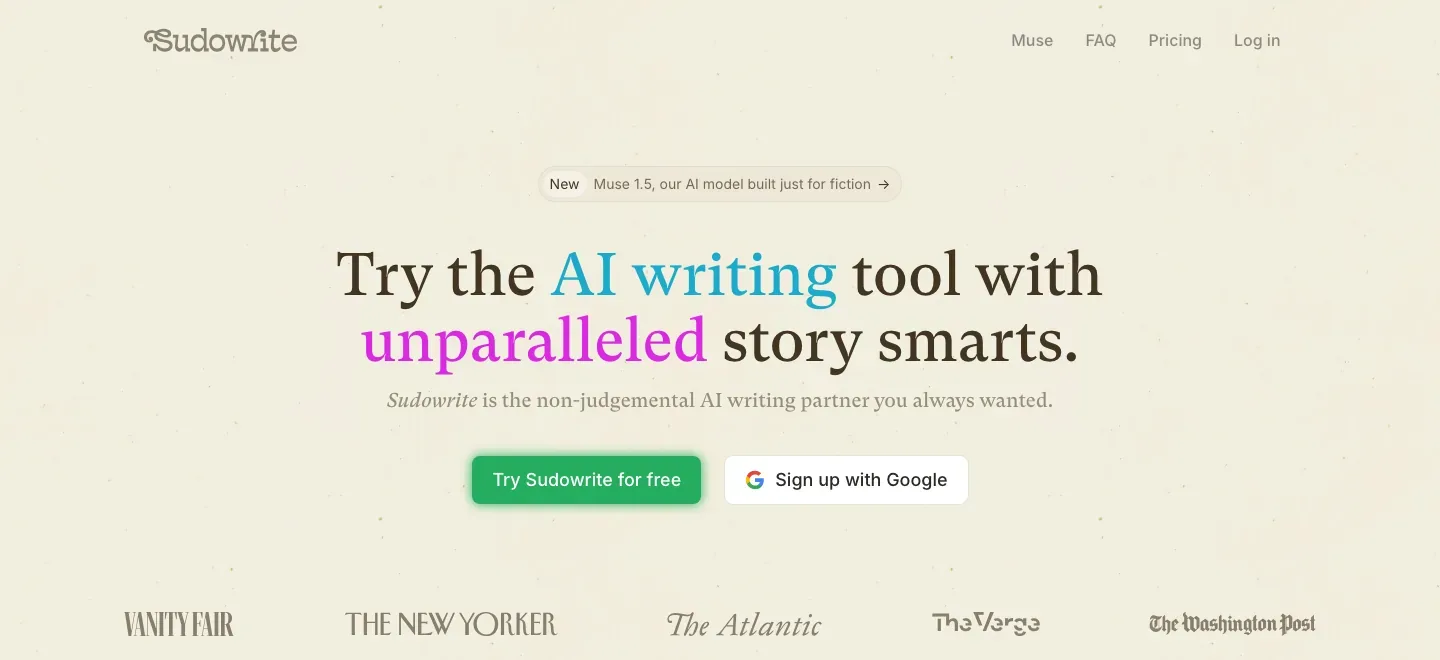
Build the world. Write the book. A fiction-first writing studio with AI that works from your characters, story plans and prose. Develop the novel, draft what comes next and revise the text in one workspace.
Sources checked 3 October 2026. Free trial · No credit card required.

Plans & price basis $19-59/month Subscription
Hobby & Student: $19/month. 225,000 monthly credits.
Professional: $29/month. 1,000,000 monthly credits.
Max: $59/month. 2,000,000 monthly credits. Credit rollover.
View current plansAI & setup AI included Fiction writing assistant
Start with document text or scenes; add Story Bible context. The service supplies AI through plan credits.
Workflow fit: AI prose drafting · AI-enabled writing workspaces · Planning and story reference
Where it works Web, iOS, Android Listed platforms
Web, iOS, and Android. Mobile has fewer features; Story Bible generation runs through Chat.
Your files DOCX, ZIP & CSV Story notes export separately
Export a document as DOCX, or a project as a ZIP of documents. Story Bible is excluded; outline, characters, and worldbuilding export separately as CSV.
Muse & model choice
AI built around the craft of fiction.
Muse is Sudowrite’s AI model built for fiction, with dialogue, pacing, viewpoint and descriptive detail at the center of its design. Genre and style instructions give the work a direction; your story material supplies the substance.
Muse, Ballad and other available models give you a choice of what powers the prose.
Story Bible · Scenes · Draft
An outline that becomes a working draft.
Story Bible brings premise, genre, style, characters and worldbuilding into one connected plan. The outline leads into Scenes, where chapter events, viewpoint and extra instructions become the basis for drafting prose.
Draft draws on the characters and worldbuilding referenced in those scenes, along with genre and style. A plan can become a chapter draft without moving your story material into another tool.
Story-aware Chat
A writing conversation that can change the manuscript.
Chat works with your active document and enabled Story Bible, so a conversation about motive, structure or a revision can draw on the story already in the project. Series context can bring the other books into that conversation, too.
With Allow edits, Chat can create and revise documents, update story notes, leave comments and highlight passages. For changes that span several steps, it proposes a plan for you to review and adjust before the work begins.
Chat-only conversation uses no credits. Allow edits uses credits.
Feedback & AI beta readers
Fresh editorial angles, right in the margins.
Feedback reads the manuscript alongside Story Bible and places its notes beside the text. Developmental, line, dialogue and copy-editing modes give different kinds of attention to the draft; custom feedback types let you focus the review.
Three AI beta-reader perspectives cover emotional impact, structure and motivation, and plausibility. You can discuss a comment with Chat, then apply or dismiss a proposed edit without leaving the manuscript.
Feedback is available on Professional and Max plans only.
Series support
One story world, across the series.
Books in the same Series folder share characters and worldbuilding, with access to each other’s outlines. Changes to those shared details carry across projects, giving the next installment a working foundation in the world you’ve already built.
Shape the prose at the level it needs.
-
Write
Keep a passage moving.
-
Continues from the prose at your cursor, using preceding text and enabled story context. Auto offers a continuation; Guided takes your direction for what should happen next.
-
Describe
Give the scene a sensory life.
-
Suggests sensory language and metaphors for a selected word or phrase. Choose the senses you want to explore, then keep the details that belong in the passage.
-
Expand
Give a compressed moment more room.
-
Builds out selected prose with fuller action and detail, drawing on nearby text and story context.
-
Rewrite
Change the telling.
-
Offers alternative phrasing for selected prose, from a tighter version to greater intensity or inner conflict. Preset approaches and custom instructions let the revision follow your intention.
Accepts up to 6,000 words at once.
-
Quick Edit
Review the change where you write.
-
Takes natural-language instructions and edits a selection inline, with the original visible for comparison. Accept, reject or refine the changes in place.
Up to 1,000 words. Standard mode uses no credits; High Quality mode uses credits.
Plugins
Build a writing tool around your process.
Sudowrite’s library offers more than 1,000 plugins for work such as editing, analysis, feedback and marketing.
Describe what the plugin should do to create it without writing code. More advanced controls let you choose models, pass in Story Bible details and build tools with several stages.
More tools inside the studio.
-
Canvas
-
A visual home for notes, character arcs, references and plot development. Move cards around, explore alternative directions and generate outlines in a flexible two-dimensional space.
-
Brainstorm
-
Generates options for names, titles, plot turns and world details from your seed material. Save promising choices to a Keepers List and steer further suggestions with what you keep.
Uses the context supplied in Brainstorm, rather than reading Story Bible.
-
Characters & Portraits
-
Develop personality, backstory, dialogue and physical appearance in editable character records. Portraits turns a character’s Physical Description into images in four styles, with a gallery for different looks.
-
Visualize
-
Generates an image from a descriptive passage selected in your document. It makes character and setting descriptions visible; Portraits works separately from the character record.
-
A workspace for the book
-
Keep drafts and chapters organized inside projects, switch to full-screen focus mode and choose a theme or dark mode that suits the writing session.
-
Word choice, close at hand
-
The integrated thesaurus offers alternative words inside the editor, keeping sentence-level choices close to the prose.
Writing fit
Where Sudowrite fits in a writing project.
- Context handling differs by tool; review generated prose against your intended voice, story facts, and enabled context. Brainstorm uses its own inputs rather than the Story Bible.
- Draft length follows the numbered scenes rather than an exact chapter word-count setting.
- Chat only does not use credits; Allow edits does. Feedback requires Professional or Max.
- Mobile includes Write, Rewrite, Chat, and Smart Dictation, with Story Bible generation through Chat; the web app has the fuller toolset and document history.
Feature details & official sources
A writing workspace for developing ideas, drafting scenes, and revising fiction.
Sudowrite says it does not use your writing to train its AI or OpenAI’s models, and claims no ownership over text you supply or it generates.
Write & Draft
Write continues existing text; Draft generates prose from numbered scenes. Enter scenes manually or generate them from an outline.
Drafting controls and review
Write offers Auto, Guided, or Tone Shift, with length and card-count controls. Draft supports extra instructions and a prose mode. Draft length follows the numbered scenes.
Write keeps result cards in History; Draft streams a chapter. Insert a chosen Write card into the document; Draft can be paused.
Story Bible & Chat
Project documents link to a Story Bible outline. Chapter drafting uses numbered scenes.
Chat reads active text and enabled Story Bible context. With Allow edits, it can change documents and story notes.
Chat-only mode uses no credits; Allow edits uses credits.
How story context is used
Write uses preceding text and linked documents. Story Bible context applies when enabled; context differs by tool.
Rewrite & Describe
Rewrite generates alternatives for selected prose, using preset styles or your instructions. Describe suggests sensory details and metaphors for a selected word or phrase.
Rewrite accepts up to 6,000 words at once.
Brainstorm
Give it a seed idea to generate a list of suggestions; save your choices to a Keepers List.
Uses the context supplied in Brainstorm, without reading your Story Bible.
- Write inputs, modes, context, and result cards (opens in a new tab) Checked
- Numbered scenes and chapter drafting (opens in a new tab) Checked
- Story Bible and chapter outline (opens in a new tab) Checked
- Monthly and annual prices and credit allowances (opens in a new tab) Checked
- Document, project, and Story Bible exports (opens in a new tab) Checked
- Current Scenes and Chapter Prose corroboration (opens in a new tab) Checked
- Character generation and editable traits (opens in a new tab) Checked
- Character portraits, four styles, and gallery (opens in a new tab) Checked
- Named features and fiction-writing overview (opens in a new tab) Checked
- Rewrite selection, controls, and context limits (opens in a new tab) Checked
- Describe sensory suggestions and selection (opens in a new tab) Checked
- Brainstorm ideas and its independent context (opens in a new tab) Checked
- Chat context, editing modes, and credits (opens in a new tab) Checked
- Web, iOS, Android, and shared account access (opens in a new tab) Checked
- Mobile and web feature differences (opens in a new tab) Checked
- Product overview, workspace, thesaurus, and free trial (opens in a new tab) Checked
- Muse and its fiction-writing design (opens in a new tab) Checked
- Current model choices and subscription features (opens in a new tab) Checked
- Monthly plans, credits, and Feedback eligibility (opens in a new tab) Checked
- Story Bible connections, Scenes, and chapter drafting (opens in a new tab) Checked
- Chat context, editing, plans, and credit use (opens in a new tab) Checked
- Chat document editing and multistep revision (opens in a new tab) Checked
- Feedback types, three AI beta readers, and plan eligibility (opens in a new tab) Checked
- Shared characters, worldbuilding, and outlines across a series (opens in a new tab) Checked
- Write continuation, context, and guided direction (opens in a new tab) Checked
- Expand selected prose with story context (opens in a new tab) Checked
- Rewrite options and selection limit (opens in a new tab) Checked
- Inline edits, review controls, and credit modes (opens in a new tab) Checked
- Plugin library and creation without code (opens in a new tab) Checked
- Canvas cards, notes, and visual outlines (opens in a new tab) Checked
- Brainstorm suggestions, Keepers, and context (opens in a new tab) Checked
- Images from selected descriptive prose (opens in a new tab) Checked
- Vendor statements on training and ownership (opens in a new tab) Checked
Information may be inaccurate. Confirm details on the official website. Report errors to [email protected].